WebmailSitemapContact
s s s s s s s s s
DSL Business Services Design d Dialup Company Information User Services Support s
Set Up Netscape 7 Mail for Mac OS X email setup
  1. Open Netscape.

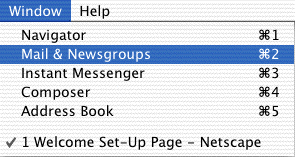
  2. From the Windows menu, choose Mail & Newsgroups.

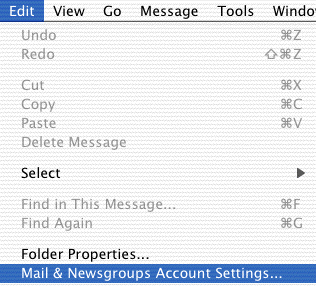
  3. From the Edit menu, choose Mail & Newsgroups Account Settings.

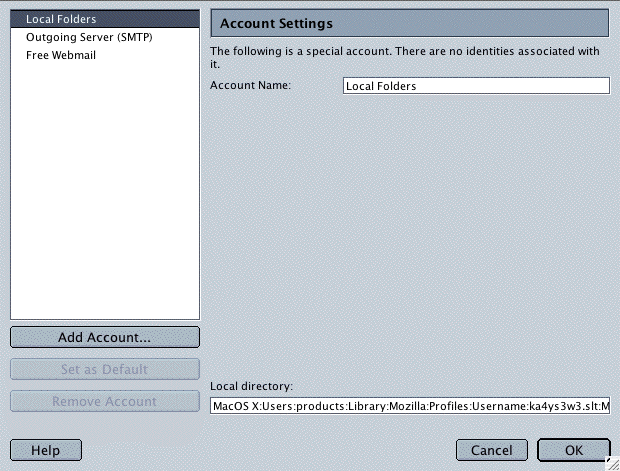
  4. Click the Add Account button.

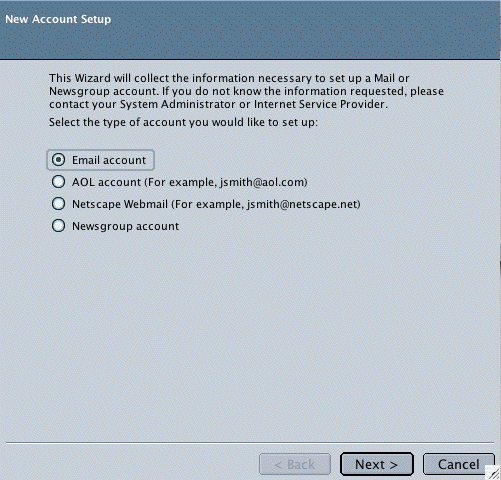
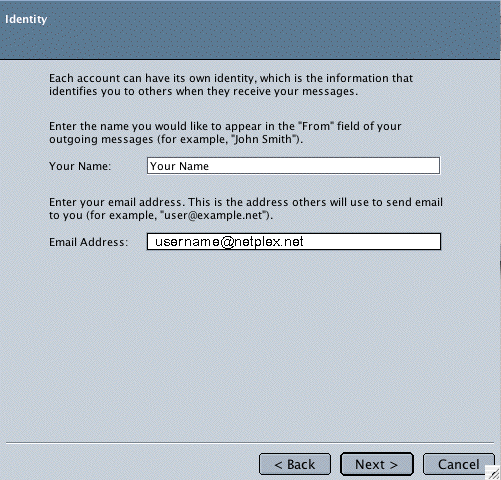
  1. Select Email Account. Click the Next button.

  2. In the Your Name field, type your name.
  3. In the Email Address field, type our full NETPLEX email address (e.g., username@ntplx.net).
  4. Click the Next button.

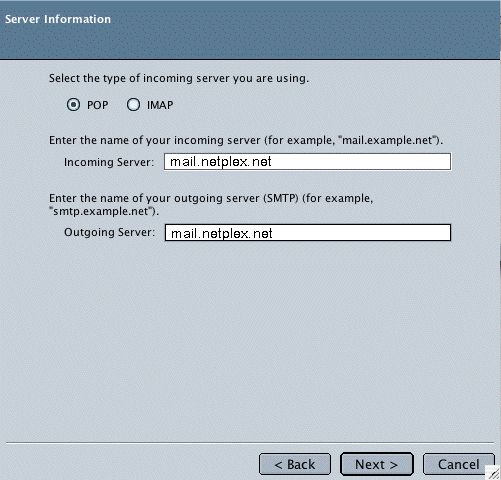
  5. Select POP.
  6. In the Incoming Server field, type mail.ntplx.net
  7. In the Outgoing Server field, type mail.ntplx.net
  8. Click the Next button.

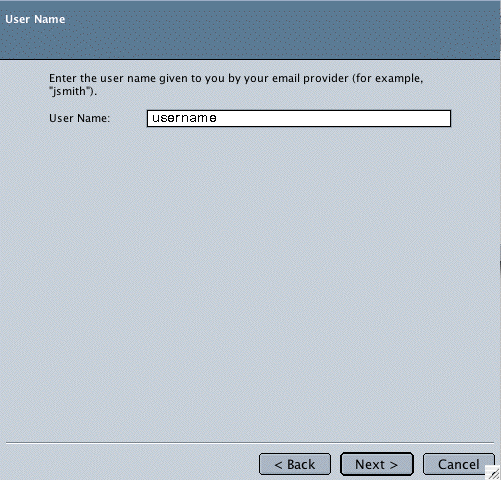
  9. In the User Name field, type our full NETPLEX email address (e.g., username@ntplx.net).
  10. Click the Next button.

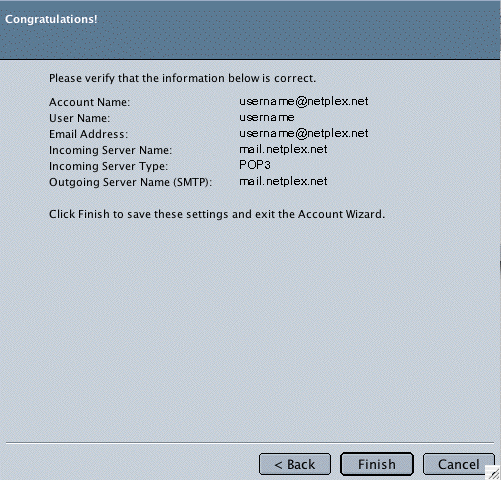
  11. Click the Finish button.

  12. Select Outgoing Server (SMTP) in the list.

  13. In the Server Name field, type your Outgoing mail server (SMTP) mail.ntplx.net
  14. Check the box next to Use name and password.
  15. In the User Name field, type your full NETPLEX email address (e.g., username@ntplx.net).
  16. Click the OK button.

Note: When you first send an email, a window asking for you password will appear. Type your email password and click OK to continue.

use policy | terms of service | privacy policy
© 2006 NETPLEX LLC. All rights reserved.
Member of CT ISP Association


DIAL-UP Technical Support


Configuring E-mail Settings for Windows

Configure E-Mail
Settings for Mac


We Want to Hear from You