| 1.
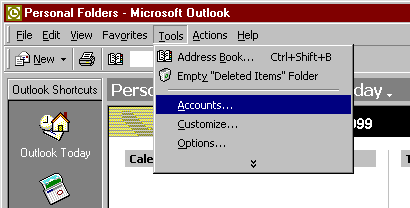
Open Outlook and select the
Tools menu then Accounts
2. Click on
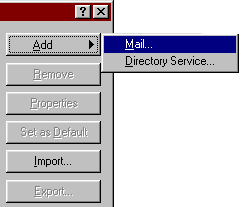
the ADD button and select MAIL
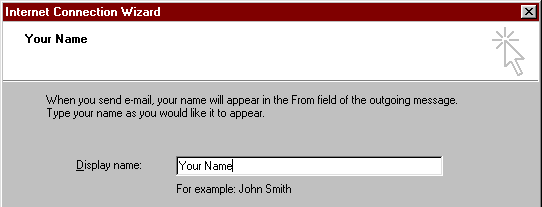
First
it will ask for your name, enter the name you want to appear
on all emails you send out then press the Next button.
Next
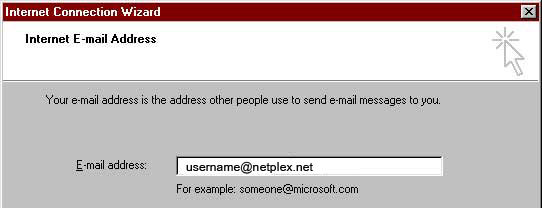
it enter your NETPLEX email address, username@netplex.net,
press the Next button.
Now
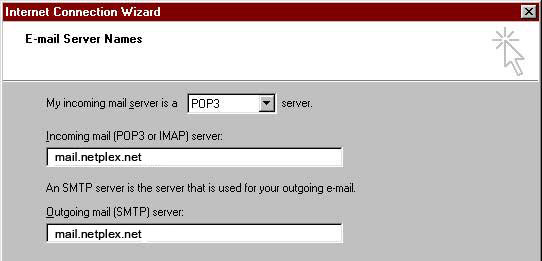
it will ask for some server settings. In this window, make
sure POP3 is selected as the mail server
type. In the Incoming mail server, enter mail.netplex.net
and in the Outgoing mail server enter in mail.netplex.net.
Now press the Next button.
In the next
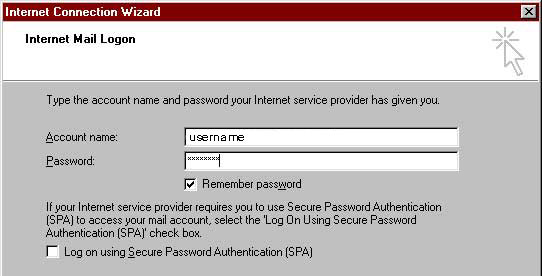
page, you need to enter your NETPLEX username and
password. If you want Outlook 2000 to remember your
password so you don't have to type it each time to get your
mail, check the box labeled Remember Password.
Once
this is setup, press the Next button.
Now
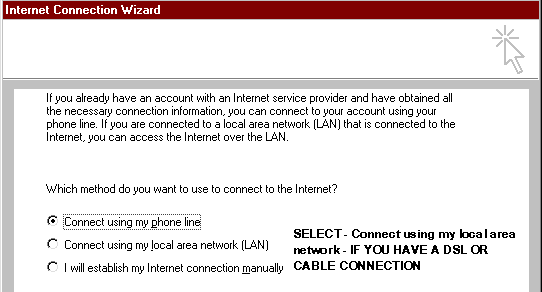
you need to select that you want to connect to the internet
to get your mail. To do this, select Connect using my phone
line
or if using DSL select Connect using my local
area network (LAN). then press Next
You want to select
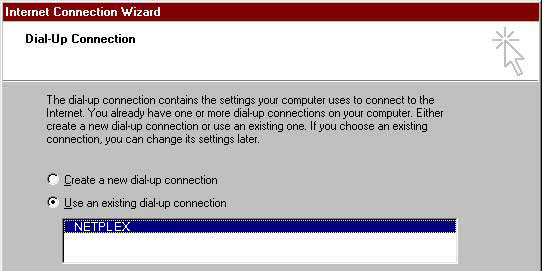
to use your NETPLEX connection, so choose Use an existing
dial-up connection and select your NETPLEX connection. Press
the Next button.
Now simply press
the Finish button and Outlook 2000 is all setup for
use! |